
There are a couple different ways for you to access your Windows wireless password information. If you're more accustomed to using a graphical user interface (GUI), then you'll be fine going to Control Panel > Network and Sharing Center > [Connection Name] > Wireless Properties > Security > Show Characters, to see the WiFi password of an access point that you've connected to in the past.
While the GUI approach is a completely viable option, today we're going to look at a couple of quick commands that will have you pulling your WiFi password information in no time at all. It should be noted that the commands shown below are usable for both Windows 10 and Windows 11 machines, but should also work on some older systems too. Also, since these are using network shell (netsh) commands, they're usable from both PowerShell or CMD.
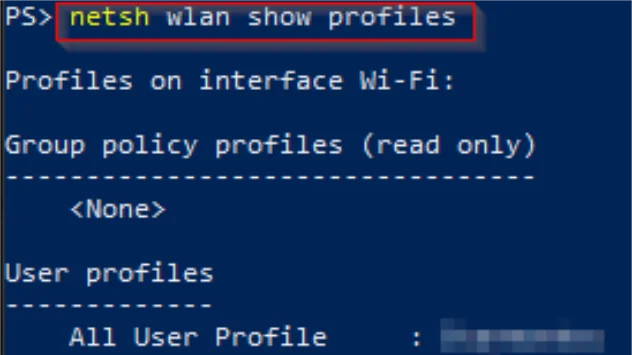
To begin with, it helps to know which wireless LAN profiles your computer currently has stored. Therefore, to show a list of all the wireless profiles on your device, you'd open a PowerShell or CMD terminal window, and input the following command:
netsh wlan show profiles
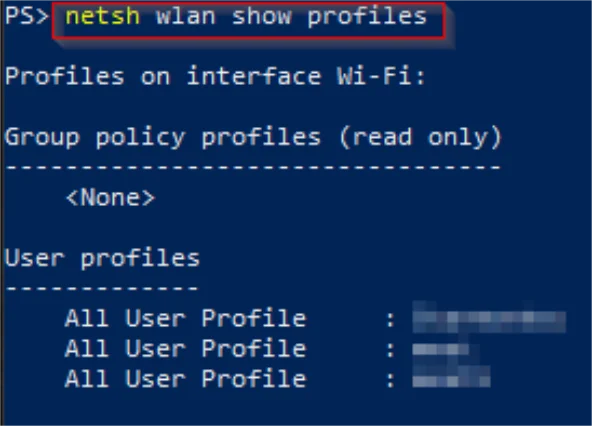
Now that we've got a list of profiles to look through, the next step is to get some additional information on a specific profile. To do that, we'll use the following command to show information on the targeted profile name:
netsh wlan show profile name=<profile name>
In this example, I have a test profile that I've spun up (starmonkey). As you can see below, there is a lot more information that's shown. It's also worth mentioning that the command has gone from show profiles (plural) to show profile (singular).
-2.webp)
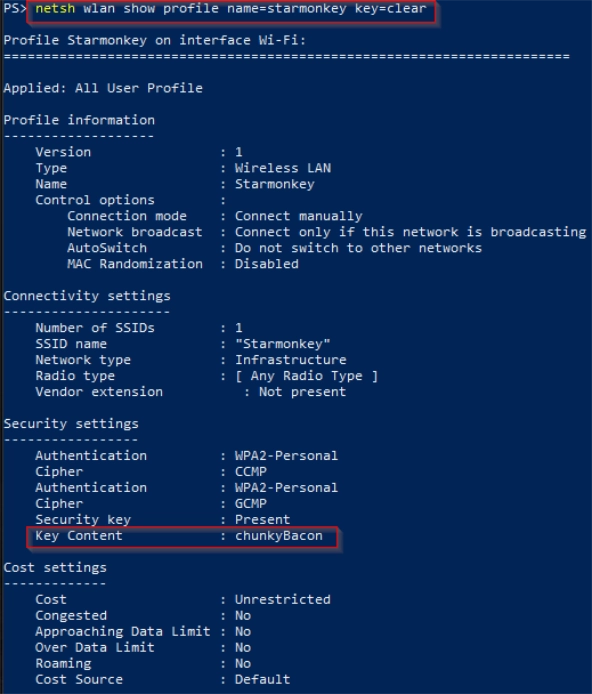
While this is useful for seeing some of the general information about a wireless profile, we still don't see a password anywhere. To check for a visible password, we'll make one additional change to our command:
netsh wlan show profile name=<profile name> key=clear
By adding key=clear, we'll see that a new field is being shown under the Security settings called Key Content. As seen here, this should be the cleartext password for the WiFi profile you've targeted.
If all you really cared about is the password, then you could simply limit the information being displayed by piping it into a find command and filter by the "Key Content" field.
netsh wlan show profile name=<profile name> key=clear | find "Key Content"
-4.webp)
Finally, since I want to clean up my profiles after my testing is done, I'm going to run one last command. Now, rather than show profile, I'm now going to use a delete profile command.
netsh wlan delete profile name=<profile name>

If you run into issues with these commands, then there are a few things you can check on:
- First, make sure that the commands have been typed in correctly. We all suffer from typos from time to time, so double check the input.
- Next, in order for this to work, the computer needs to have been connected to the targeted Wireless Network at some point in the past. You can't pull the information if that information doesn't exist on this device.
- You may need privileges to run these commands, depending on your group policy settings.
Hopefully this has been an interesting insight into some useful netsh commands for grabbing wireless password information.
More built-in Windows tools you should know about.
If you found netsh useful, check out pktmon, the built-in packet capture utility that ships with every modern Windows system.
Read: Built-In Network Capture with Windows 11