

One of the common tasks that occurs when pentesting an embedded device is binary analysis of executable files found in the firmware. Static analysis, using tools such as IDA or Ghidra, are a great starting point. However, if you found a possible memory corruption bug, such as a buffer overflow or a format string bug, how are you supposed to create a working PoC exploit for it? Sure, you could guess the stack size, addresses, and hope to one-shot the exploit based on your static analysis and test it out on a real world device. But if that fails and you don't know why, how do you debug your exploit?
One option would be to get a hardware debugger attached through SWD, JTAG, etc. But this requires the device and determining how you can connect the hardware debugger. It would be a lot cleaner if you could run and debug the binary locally. Most likely, you will run into the problem that the embedded device you are testing is built for an architecture such as ARM, MIPS, etc., and your local machine is an X86_64 architecture. To further complicate this, most binaries are dynamically linked and depend on libraries that are built for that architecture. This will cause the binary to fail when attempting to load these libraries.
Enter the QEMU + BINFMT + GDB toolchain. Using these packages, it is possible to unpack a firmware, enumerate the target binary's architecture, and provide a path for loading libraries from the extracted firmware's filesystem. Today, I would like to provide an example of how you can use these tools to run an ARM binary from an extracted firmware natively on an Intel X86_64 Kali Linux system. This blog post will cover the following objectives:
- Installing QEMU, BINFMT, and GDB packages on Kali Linux
- Attempting to run the binary without QEMU
- Attempting to run the binary with QEMU
- Using BINFMT to address library paths
- Using GDB to debug the emulated binary
Installing QEMU, BINFMT, and GDB Packages on Kali Linux
In order to run non-native binaries, you will need to install a few packages that make the emulation possible.
Installing QEMU
QEMU is the main emulator software that allows us to emulate another architecture natively. This tool is a topic in and of itself, since it can be used to run a binary alone or a full-blown graphical operating system. For performing the objectives outlined in this blog, installing the qemu-user-static package is sufficient. The following command can be used to install this package in Kali Linux.
sudo apt update && sudo apt install qemu-user-static
Installing BINFMT
BINFMT complements QEMU nicely. BINFMT provides a mechanism in Linux to register interpreters (e.g. QEMU) based on various things such as the magic numbers of a file. Given that ELF binaries contain headers that identify the target architecture, this makes it seamless to have the system invoke QEMU for non-native binaries. The following command can be used to install and start the configuration for this package in Kali Linux.
sudo apt update && sudo apt install binfmt-support && sudo mkdir -p /etc/qemu-binfmt
Installing GDB Multiarch
The final package needed is the GDB Multiarch package. This is a build of GDB that supports multiple architectures, not just the native one for your machine. This is needed if you want to debug non-native binaries. Without it, GDB will assume that the code matches your native system and will fail to understand the non-native binary. The following command can be used to install this package in Kali Linux.
sudo apt update && sudo apt install gdb-multiarch
Alongside installing this, I would recommend installing a Python GDB helper script that supports multiple architectures and makes GDB more usable. Two great examples are GEF or PwnDBG. These scripts can be set to automatically load with GDB through the ~/.gdbinit file and are massive quality of life improvements for debugging and exploit development.
Attempting to Run the Binary with QEMU
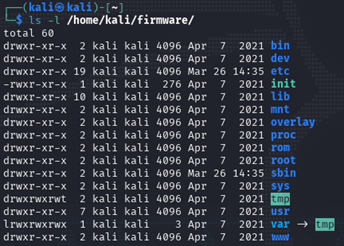
Now that everything is installed, I will attempt to run an ARM binary from a firmware I have already extracted on my system. This firmware was a simple custom OpenWRT build created previously for a challenge. The extracted filesystem from the firmware is located on my system under the folder /home/kali/firmware/.
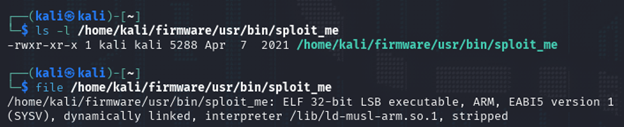
In particular, I'm interested in running and debugging the binary at /home/kali/firmware/usr/bin/sploit_me. If I look at this binary using the file command, I can see that it is a 32-bit dynamically linked ARM ELF binary.
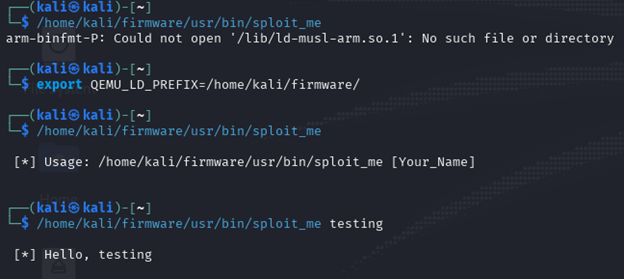
Since QEMU and BINFMT are installed, I can attempt to run it directly from the command line and BINFMT should automatically invoke QEMU. However, the binary fails to run since it can't find the interpreter at the path /lib/ld-musl-arm.so.1.

Furthermore, since this is a dynamic binary, there would be additional issues since the libraries in our library path are built for X86_64.
Addressing Library Paths
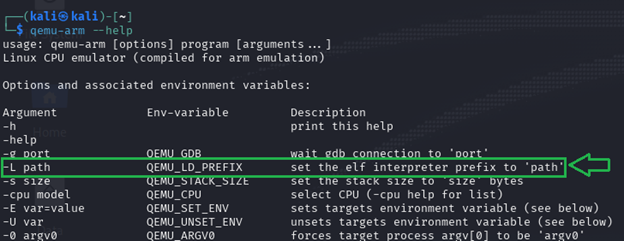
There are two ways to address the library path loading errors using QEMU. You can manually invoke qemu-arm with the -L <firmware_path> switch, which defeats the purpose of BINFMT, or you can use the environment variable QEMU_LD_PREFIX to address this.
If I export the environment variable QEMU_LD_PREFIX and point it to /home/kali/firmware, I can now run the ARM binary locally on my X86_64 system!
Of course, this binary is called sploit_me, so if I provide a long string of 500 bytes for the argument, it crashes.
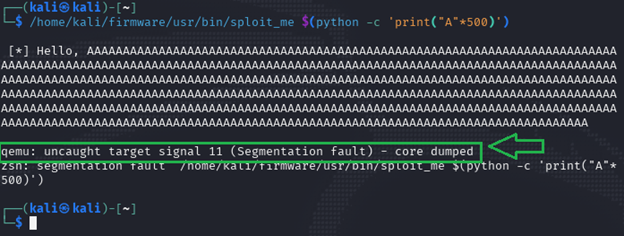
The crash is a good sign of a buffer overflow. Normally, this is where you would load it up in GDB and start working out offset length and craft your PoC exploit. In this case we are dealing with an ARM binary, so I need to leverage QEMU's GDB stub functionality to debug it.
Using GDB to Debug the Emulated Binary
QEMU supports running emulated binaries with GDB for remote debugging through the -g <port> switch or the QEMU_GDB environment variable.
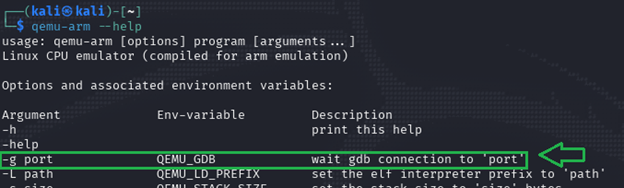
If I set the QEMU_GDB environment variable to port 4444 and run the program again, it just hangs. However, if I leave that running and open a new terminal, I can see that the system is listening on port 4444 for connections.
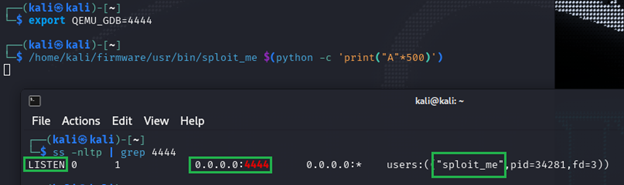
This is a GDB remote debug port. Using the new window, I can launch gdb-multiarch -q. The -q switch just suppresses GDB showing the version banner. Upon launching it, there are some configuration commands that need to be run. First, I'll share the commands, then explain them afterward. The four commands are as follows.
set sysroot
set architecture arm
file /home/kali/firmware/usr/bin/sploit_me
target remote localhost:4444
The first command, set sysroot, will blank out the sysroot for GDB (default is target:). The second command, set architecture arm, lets GDB know what architecture will be debugged. Since debugging will occur over a remote connection, setting that information upfront is important. The third command, file /home/kali/firmware/usr/bin/sploit_me, tells GDB to read that file and extract information from it. In a remote debugging session, GDB would typically not know what it was debugging and symbols would not come across. Loading the file makes the debugging process feel more similar to debugging a local process. Finally, target remote localhost:4444 makes GDB connect to the debug port that QEMU set up, starting the debugging session. After executing that last command, the debugger should come to life and the application will be halted for inspection.
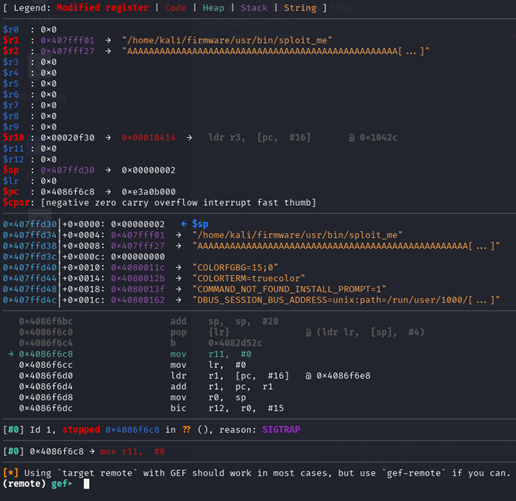
The above screenshot shows code and registers that are ARM related. At this point, you can work with GDB on the ARM-based process. Since this blog is already long enough, I will keep it short and just run the continue command, causing the program to crash due to the PC register (ARM's equivalent of Intel's EIP/RIP register) being set to 0x41414140.
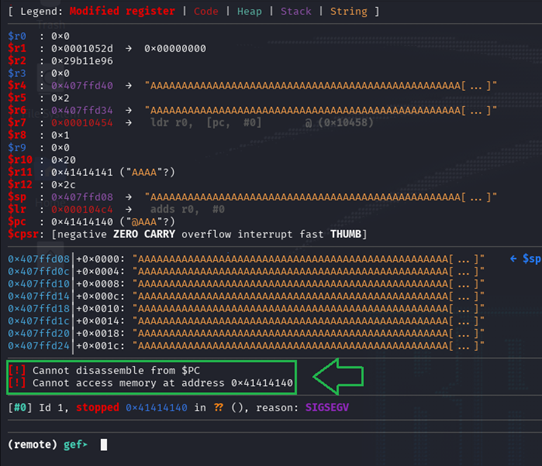
From here, you could create a working proof-of-concept exploit and test it out locally, without even having a physical embedded device running the targeted firmware. Once you have it working locally, you can test it against a real-world device.
Conclusion
The use of QEMU and GDB is paramount if you want to start reverse engineering and exploiting embedded systems. While this is a great solution for dynamic binary analysis, it does have some limitations that can be difficult to overcome. For example, if the target process is attempting to read and write to a custom driver file in /dev/, you might have to fake those parts yourself to avoid errors.
If you are interested in learning more about embedded device or hardware hacking, check out our YouTube channel where we have covered topics on these subjects in the past. You can also reach out via the contact us form on the website if you have questions related to hardware or embedded security.
Building exploits for embedded devices is what our hardware team does.
Binary analysis, firmware extraction, and proof-of-concept exploit development are all part of a real embedded device security assessment. If you ship hardware or IoT products, we can tell you what an attacker would find.
Talk to Our Team