
October means Fall, arguably the best season of the year, because it means cooler weather, scary movies, Halloween, and more than a few tricks and treats. October also happens to be Cybersecurity Awareness Month, so what better time to talk about one of the oldest tricks on the internet?
Working in cybersecurity, phishing is something I see and talk about all the time. It's also something I get asked about all the time: How can you tell if an email is fake? What happens if you click on something? How worried should you be about that weird text from "your bank"?
The Trick That Hit Close to Home
Just last year, someone in my own family was phished. A fake Microsoft warning popped up on their computer with a phone number to call for help due to security issues. The person on the other end convinced them to install remote management software, and then made changes that allowed them to maintain access to the computer after the call was over.
It wasn't until they saw their mouse cursor moving across the screen on its own that they realized something was wrong. They panicked, hung up the phone, and shut the computer off. By that point, though, the person had already gained access to the machine. It wasn't long afterwards, when they called me in a panic asking for help.
Thankfully, we were able to deal with it. My advice was to disconnect the computer from the internet, back up any important files, and completely wipe the machine before reinstalling Windows. Since the attacker had already gained remote access and made changes to the system, I didn't want to take any chances. As far as they knew, their computer was telling them there was a problem, and they were calling the number it gave them to get it fixed.
That's what makes phishing so effective: It doesn't always look suspicious in the moment. So instead of trying to memorize what a phishing email or scam looks like, it's much more useful to know what to look for when something doesn't feel quite right.
The Trick Behind the Treat
Phishing is really about convincing someone to do something they normally wouldn't do. An attacker might want your password, credit card information, personal information, or access to one of your accounts. They might send you a file they want you to open or try to get you to approve a Multi-Factor Authentication (MFA) request. Sometimes it's easier to just ask for those things than it is to actually break into an account.
If an attacker can convince you that Microsoft needs you to sign in because your password is about to expire, they don't necessarily need some complicated technique to hack your account. They just need to make a fake Microsoft login page and convince you to type your password into it. With Artificial Intelligence (AI), creating something convincing is becoming easier than ever. What once required at least some web development knowledge can now be put together quickly with an AI tool. Making it so much easier for someone to create a convincing fake login page with little more than a few prompts. All an attacker has to do is trick you once.
The email, text, pop-up, or phone call is just how they get your attention. What matters is what they're trying to get you to do once they have gained your attention or access to your accounts.
A Good Costume: Phishing Messages Don't Always Look Suspicious
For years, one of the most common pieces of advice about phishing was to look for spelling and grammar mistakes. To be honest, that is still solid advice, but it's not enough on its own anymore.
Email gets most of the attention, but you've probably seen plenty of phishing attempts in your text messages too. Fake delivery notices, unpaid tolls, suspicious bank transactions, and accounts that supposedly need to be verified are all common examples. Phishing can also happen through phone calls, QR codes, social media, and, like the example with my family member, fake warnings or pop-ups on your computer.
There are different names for some of these. Phishing through text messages is commonly called smishing, while phishing through phone calls is called vishing.
Terminology isn't really the important part. What matters is recognizing the pattern.
If someone contacts you or puts something in front of you unexpectedly, whether it's a text message or an email, etc. They're trying to give you a reason to care, and then they ask you to click, call, scan, download, pay, sign in, or provide information. That's when it's worth taking a closer look.
A phishing email or text can be well written, have the correct company logo, and look almost exactly like a real email you've received before. What would your first instinct be if you received a text message like the one below?
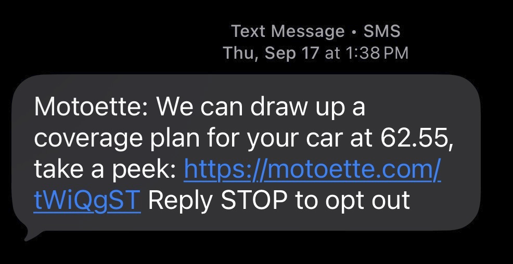
At first glance, the example above looks like a normal marketing message. There's a company name, a price, a link, and even the familiar "Reply STOP to opt out" at the end, but that's exactly why you shouldn't judge a message by how legitimate it looks. A convincing format doesn't tell you who actually sent it or where that link is going to take you.
The message doesn't have to fool you for very long. It just has to look legitimate long enough for you to click.
So, what are three things to look for when you first receive any form of message asking you to click a link or reply:
- Where is the number or email coming from?
- Where is that link taking me?
- Am I expecting this communication, or is it coming out of the blue?
Unmasking the Sender
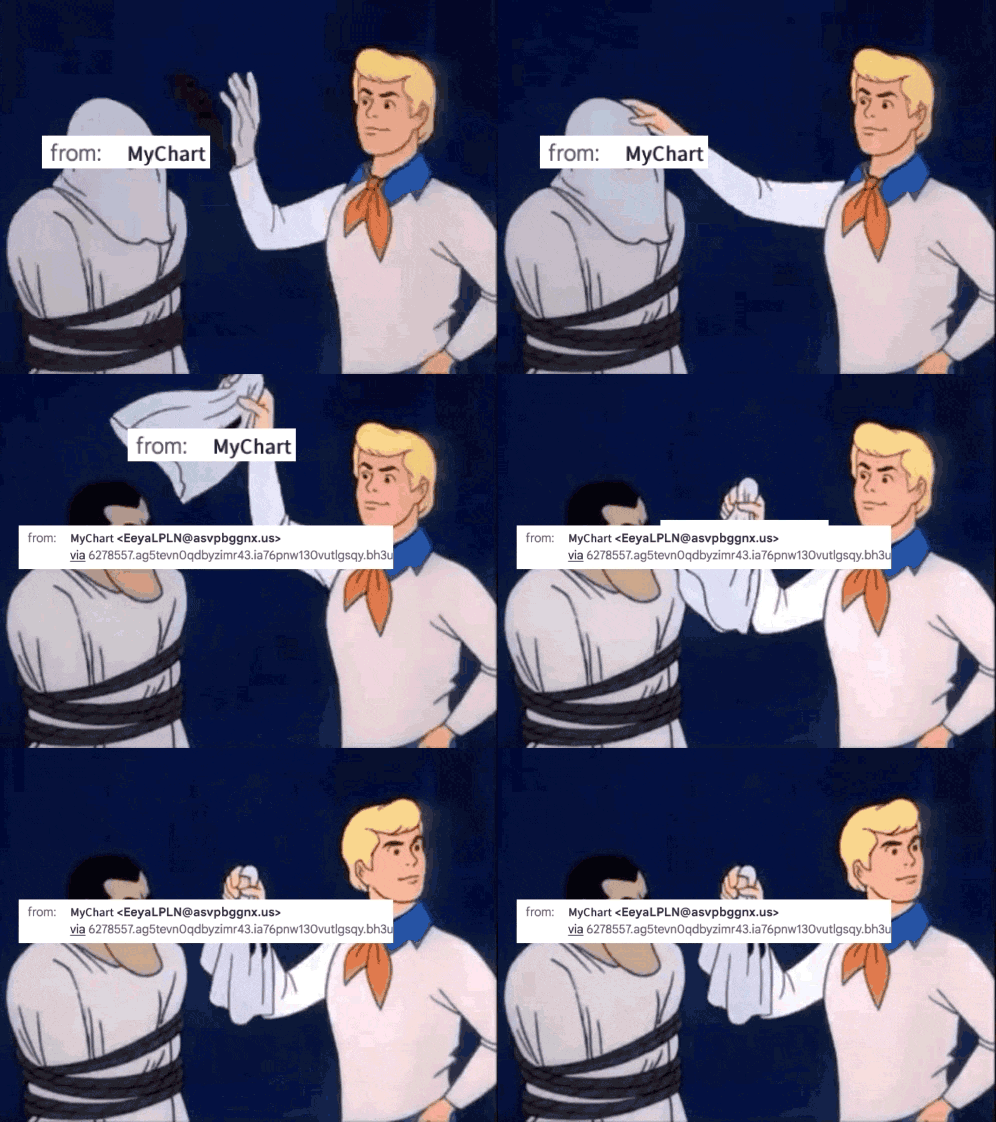
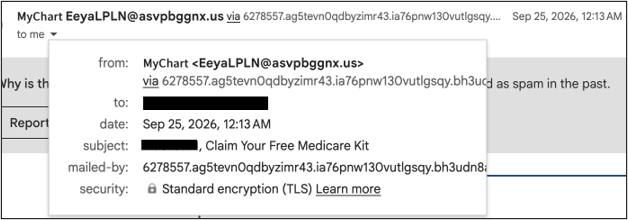
One of the easiest things to check is the sender's actual email address. Your inbox might show a message from Amazon Customer Support, but that doesn't necessarily mean it came from Amazon. Email servers can make the display name on an email to say just about anything, so it's recommended that you click or tap the sender and look at the full email address.
Sometimes the fake is obvious; other times the address is designed to look close enough that you won't notice unless you're paying very close attention. There might be an extra word in the domain, a letter swapped around, or a company name buried somewhere in a longer address. This doesn't mean you need to investigate every email you receive, but if an unexpected message wants you to enter a password, make a payment, open a file, or provide personal information, take a few seconds to check where it actually came from.
Using the following screenshot of an actual email I received last week as an example, the subject was titled "Claim Your Free Medicare Kit". It didn't take much effort to take a glance at the sender's email address and figure out that it looked suspicious.
Check the Link Before Taking the Treat
Something I show people pretty often is that you don't actually have to click a link to see where it's going. This process is much easier on a computer, where you can just hover your mouse over it, and it will present a popup on the screen of where the link is actually going. This can be a little trickier on a phone; you just have to be extra careful you don't accidentally click the link, but you can usually just press and hold the link to preview it, and it will also show what the true URL for the link is.
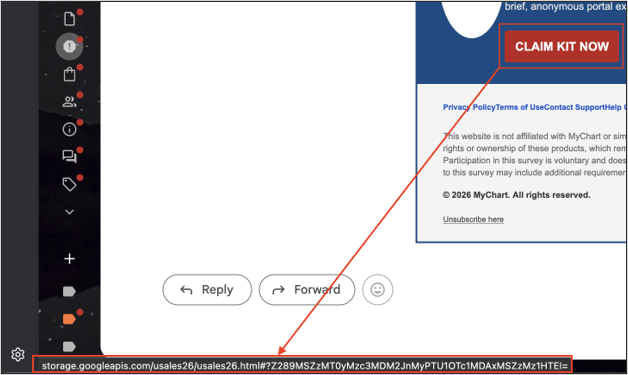
You don't need to become an expert at reading URLs. But just never assume a link is legitimate because you see the company's name somewhere in it. And if you're not sure? Don't use the link at all. Delete the email or the text and pat yourself on the back.
Fear, Urgency, and Curiosity: The Attacker's Favorite Tricks
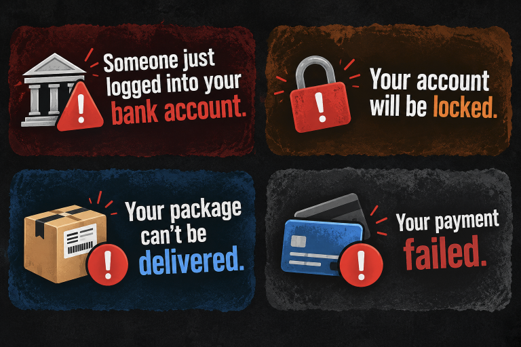
A lot of phishing messages want you to hurry, and there's a reason for that. Attackers are trying to manipulate your emotions, your worries, or anxieties. If you're worried about someone getting into your bank account, you're probably thinking about fixing the problem, not spending time studying the email address that sent you the warning.
That doesn't mean every urgent message is fake. Banks and other companies send legitimate alerts too. But over the years, advice from experts from all areas of information security have developed a simple rule:
The more a message wants me to hurry, the more likely I am to slow down and check it first.
Give yourself a few seconds to look at the message. Take the time to identify who sent it, where they're trying to send you, what they want you to do, and whether what they're asking makes any real sense.
The Safest Trick: Don't Use Their Link
This is probably the easiest piece of advice in this entire post, and it's what I do most often:
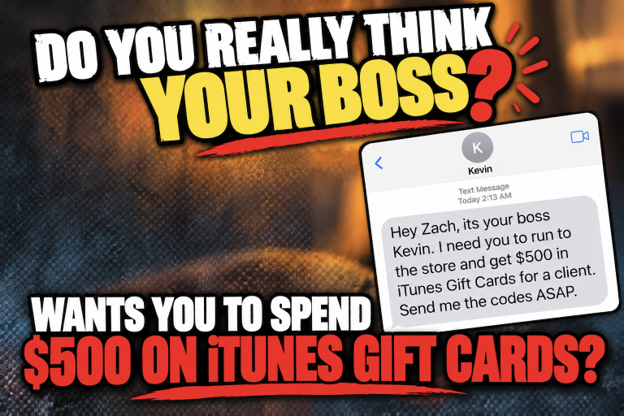
Just don't use their link.
Let's say I get an email telling me there's suspicious activity on my PayPal account. Instead of trying to figure out whether the email is legitimate, I can open the PayPal app myself and check my account. Same thing with Amazon, my bank, Microsoft, or just about anything else.
If there really is a problem, I should be able to see it after logging in through the website or app I already know and trust.
This applies to phone numbers, too. If a pop-up suddenly tells you there's a problem with your computer and gives you a number to call, don't call the number on the screen, the first thing I ALWAYS do is a Google search for that phone number. If you think there really might be a problem, contact the company through a number or support page you've found independently from its official website.
It takes a little more effort, but you've removed one of the biggest unknowns from the situation, and you're no longer trusting the contact information a stranger gave you.
You don't need to become an expert at analyzing phishing emails. You just need to get comfortable questioning unexpected messages before doing what they ask.
I Clicked It. Now What?

So, you clicked the link? Understandable, people click on things. It happens. But what you should do next depends on what happened after you clicked.
- If you opened the page but didn't enter anything, close it.
- If something is downloaded, don't open the file, open the Downloads folder, or wherever you saved it to, and delete it immediately.
- If you entered a password, go directly to the real website and change it. If you've used that same password somewhere else, change it there too. Turn on Multi-Factor Authentication (MFA) if it isn't already enabled.
- If you entered credit card or banking information, contact your bank or card issuer immediately and have the card frozen temporarily.
- If you installed software or gave someone remote access to your computer, disconnect the computer from the internet and get technical help. Simply closing the program or restarting the computer may not be enough if other changes were made while someone had access.
- And if this happened on a work computer or work account, tell your IT or security team as soon as possible.
I've seen people worry about getting in trouble or looking stupid because they clicked a phishing email, but keeping quiet about it can turn a small problem into a much bigger one very quickly. The sooner your security team knows the sooner they can figure out what happened and deal with it.
TL;DR: Your Anti-Phishing Checklist
If you don't remember anything else from this post, remember STOP:
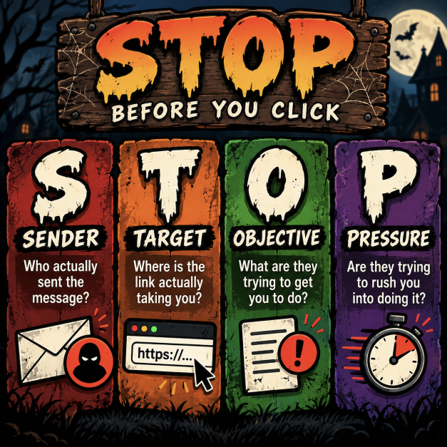
Phishing scams are constantly changing and evolving, and it's guaranteed that they are going to keep getting more convincing. But most of us don't need to become experts at spotting them. Do your own due diligence:
- Check the sender.
- Look at the link.
- Be suspicious when someone is trying to rush you.
- And when a message says there's a problem with an important account, go check the account yourself instead of using the link they sent you.
A few extra seconds is usually all it takes.
There are plenty of tricks to worry about this Halloween, but a fake Microsoft login page doesn't need to be one of them.
Want to test how your team handles phishing?
Our social engineering assessments simulate real-world phishing campaigns to measure how your organization responds. If you want to know where the gaps are before an attacker finds them, reach out.
Contact Us